

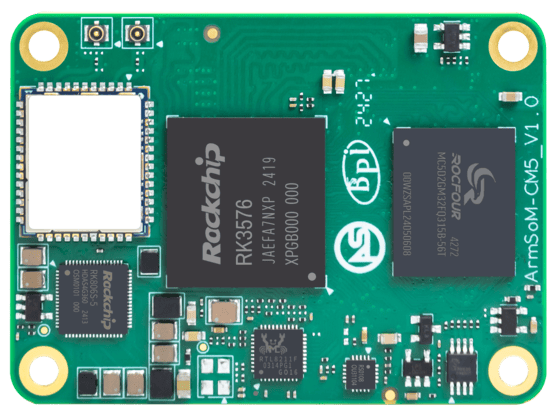
ArmSoM CM5 product photograph.
ArmSoM's CM5-IO documentation includes an IMX219 camera configuration and a Raspberry Pi Camera Module 2 example. The reliable way to reproduce that path is to keep the module, carrier, camera connection and system image aligned with the documented setup.
This guide follows that configuration and explains how to identify the stage at which a camera fails. A different carrier, cable or boot configuration may require a different device tree and electrical review.
Check the connection with power removed
Record the CM5 and carrier revisions, camera model and cable type. Verify the connector pinout and contact orientation against the carrier documentation. Do not assume that two flexible cables with the same width have the same connection arrangement.
Connect the camera with the board powered off. Check power rails, reset or power-down control, clock and I2C routing if you are using a custom carrier. A software change cannot correct a cable orientation or voltage-domain mismatch.
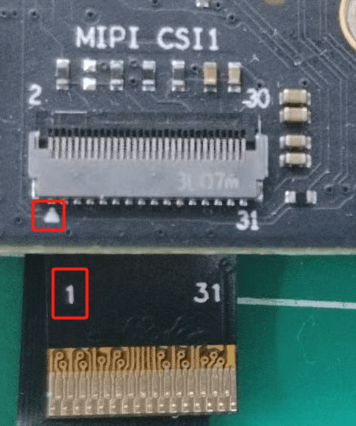
CM5 camera connector and cable reference from the ArmSoM documentation. Confirm the IMX219 adapter, connector pinout and cable orientation for the exact board revision before applying power. Image: ArmSoM.
Identify the image's camera configuration
The CM5-IO example uses the boot configuration file /boot/uEnv/uEnvarmsom-cm5-io.txt. Confirm that the file and referenced overlay exist on your image before editing. If they do not, use that image's boot documentation instead of creating the path by guesswork.
On an image containing this configuration, preserve a copy before making the change:
sudo cp -n /boot/uEnv/uEnvarmsom-cm5-io.txt /boot/uEnv/uEnvarmsom-cm5-io.txt.before-imx219
sudo nano /boot/uEnv/uEnvarmsom-cm5-io.txt
Enable the documented IMX219 entry for the matching camera connection:
dtoverlay=/dtb/overlay/rk3576-armsom-cm5-io-camera-imx219-cs0-overlay.dtboCheck that no conflicting overlay claims the same resources, then save and reboot. Preserve serial-console or other recovery access in case the configuration prevents a normal boot.
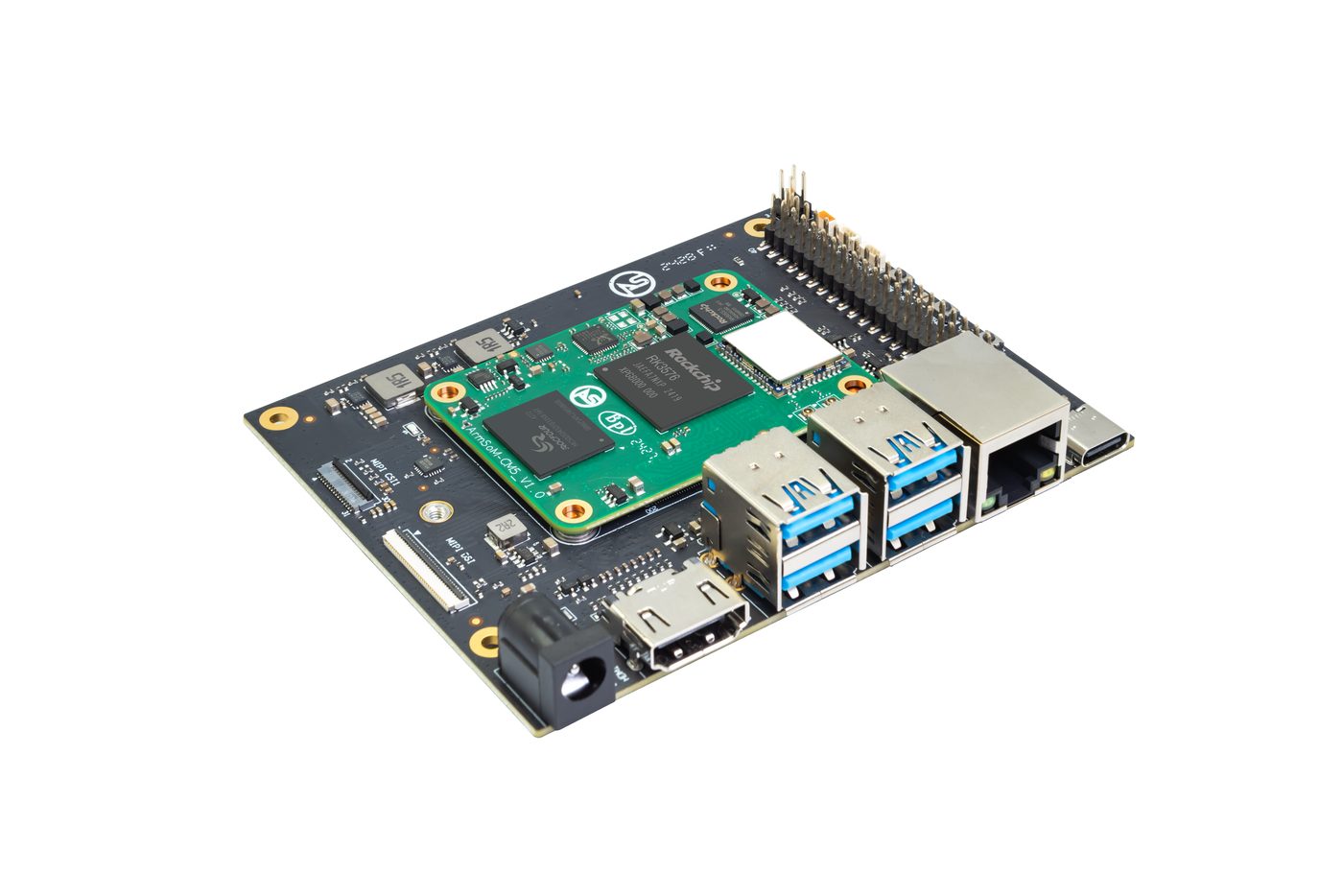
ArmSoM CM5 mounted on a CM5-IO carrier board. This is a board reference photo, not an IMX219 camera installation.
Check sensor detection before video capture
sudo dmesg | grep -i imx219
sudo dmesg | grep -Ei 'camera|csi|dphy|isp'
Look for a successful sensor identification and then for the connected capture path. A detected sensor shows that some control communication works; it does not prove frames are flowing through CSI and the ISP.
If identification fails, investigate camera power, cable connection, I2C routing, clock and reset before changing application code. If identification works but capture fails, inspect lane configuration and the media pipeline.
Discover the video node on this boot
v4l2-ctl --list-devices
ls /dev/media*
Use media-ctl to inspect the relevant media device and v4l2-ctl to inspect its capture node. For example, after discovery identifies /dev/media0 и /dev/video11 for your camera:
media-ctl -d /dev/media0 -p
v4l2-ctl -d /dev/video11 --list-formats-ext
v4l2-ctl -d /dev/video11 --get-fmt-video
Those node names are examples, not fixed CM5 assignments. Additional cameras and driver changes can alter enumeration. Confirm that the selected node is a usable capture output rather than metadata or another pipeline function.
Capture first, then add your application
Choose a format and resolution reported by the actual capture node. Use the image's documented capture procedure to save a frame, and inspect dimensions, color and exposure. Some pipelines require sensor, ISP and image-processing services to be configured together.
Do not label raw frame bytes as a JPEG or MP4 file. A raw capture needs the correct interpretation; encoded video needs a matching encoder and container. Keep this distinction clear when testing with V4L2 or GStreamer.
Once capture is stable, add preview or AI processing. Measure dropped frames and latency with the final processing workload. A camera preview alone does not establish reliable concurrent recording and inference.
Send a reproducible support report
Include hardware revisions, image identifier, camera and cable details, enabled overlays, boot logs and media topology. A photo showing cable orientation can also help. Share the report through the ArmSoM forum so the diagnosis and eventual solution remain available to other developers.